AI assistant (MCP)
The MCP server and personal access tokens are available from release 1.57.
MCP (Model Context Protocol) is an open standard that lets an AI assistant work safely with other software. Every Yres organization has its own MCP server. An assistant that supports MCP, such as Claude Code or VS Code, can use it to look up your environments and sources, add or change used tables, manage changes and projects, load a source and check the monitoring. You ask in plain language; the assistant picks the right tools itself.
What you can do with it
The assistant uses the tools below. The names in the right-hand column are the tool names your assistant sees.
| Topic | What the assistant can do | Tools |
|---|---|---|
| Environments | List the environments of your organization (dev, test, prod). | list-environments-tool |
| Sources | List your data sources, with details such as the installation status and which optional table settings the source supports. | list-data-sources-tool, get-data-source-tool |
| Sources | Update the tags of a source. | update-data-source-tags-tool |
| Viewing tables | List the used tables of a source, and the full load configuration of one table. | list-used-tables-tool, get-used-table-tool |
| Choosing tables | See which source tables are not loaded yet, which columns a source table has and which key Yres suggests. | list-unused-tables-tool, get-data-source-dictionary-tool, predict-key-columns-tool |
| Adding tables | Add a source table as a used table, or an endpoint of a REST source. | create-used-table-tool, create-used-rest-service-table-tool |
| Changing tables | Change the load configuration of an existing used table, such as the load type, the columns or the key. | update-used-table-tool |
| Changes | List, create, update, move to another project or delete changes while they are open. | list-changes-tool, create-change-tool, update-change-tool, move-change-to-project-tool, delete-change-tool |
| Projects | List, create, update or delete projects while they are open. | list-projects-tool, create-project-tool, update-project-tool, delete-project-tool |
| Loading | Load a source: one table or all used tables of the source. | load-data-source-data-tool |
| Metadata | Re-read the metadata of a source, so new tables and columns become visible. | refresh-data-source-metadata-tool |
| Following progress | Follow the status of a started pipeline run or a background process. | get-pipeline-run-tool, get-monitor-tool |
| Monitoring | View the latest load per table, and the per-table result of a load the assistant started. | list-latest-loads-tool, get-load-tool |
The server also offers two ready-made prompts: Add Used Table and Update Used Table. They guide the assistant step by step through adding or changing a used table: choosing the source and change, settling the columns and key, agreeing on the load type and checking the result. In a client that supports prompts, you pick them from the server's list.
Closing, releasing and installing changes and projects is done in the web app. A load filter on a used table and changes to REST tables also stay in the web app.
Connecting
You need two things: the address of the MCP server and a personal access token.
- In the web app, open the user menu (the icon with your initials) and choose API tokens & MCP.
- Click Create, give the token a name and optionally choose an expiry date. Copy the token right away with Copy token: it is shown only once. See also Account.
- Click MCP setup. This window shows a ready-made configuration for VS Code and for Claude Code, which you can copy or download.
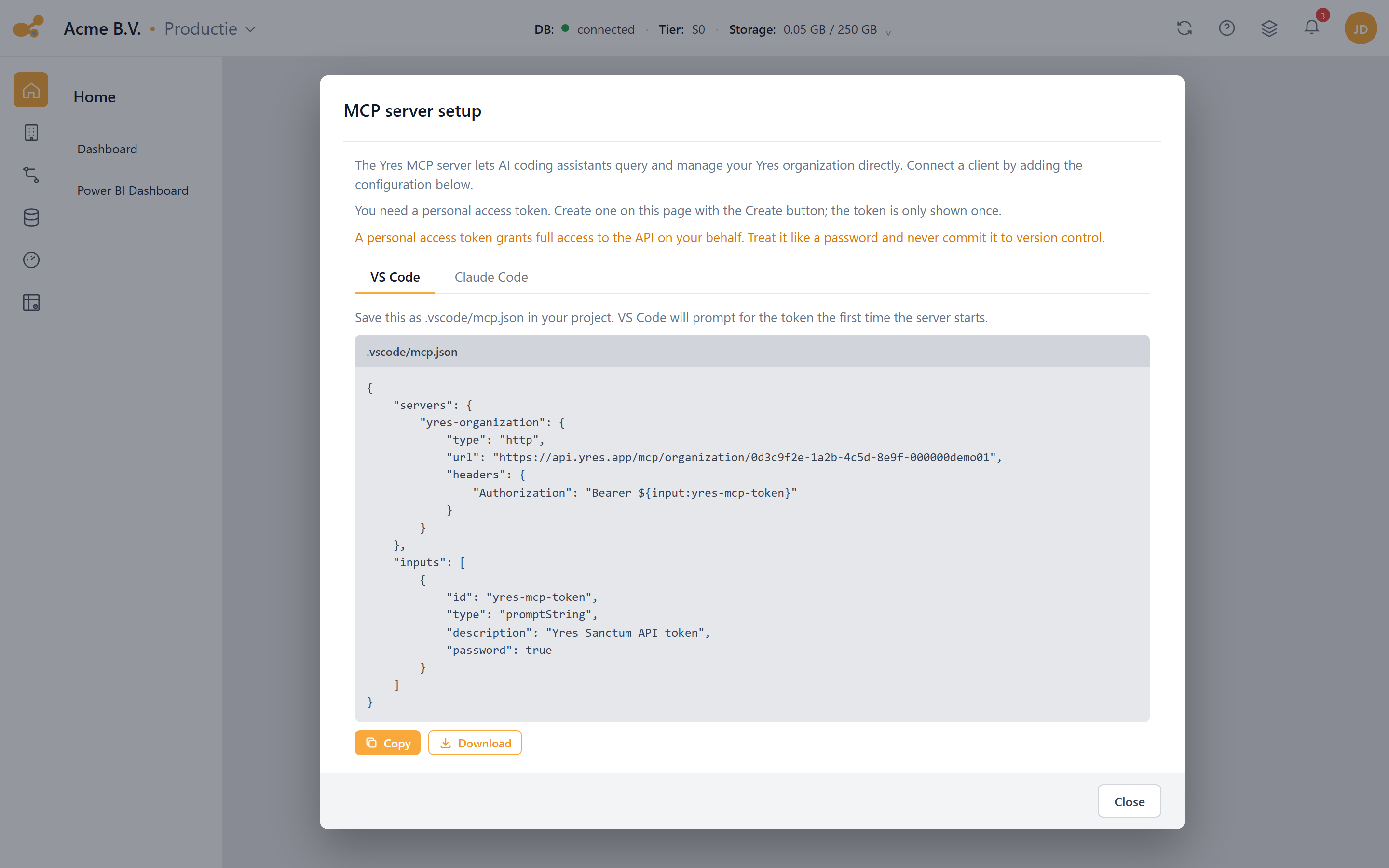
The MCP server setup window: pick your client's tab and copy or download the configuration. The organization UUID is already in the address.
When you open MCP setup inside an organization, the organization UUID is already filled in. The address looks like this:
https://api.yres.app/mcp/organization/<organization-uuid>
In the configuration the server is called yres-organization and uses the HTTP transport. The token is
sent as Authorization: Bearer <token>.
Claude Code
Save the configuration as .mcp.json in the root of your project:
{
  "mcpServers": {
    "yres-organization": {
      "type": "http",
      "url": "https://api.yres.app/mcp/organization/<organization-uuid>",
      "headers": {
        "Authorization": "Bearer ${YRES_MCP_TOKEN}"
      }
    }
  }
}
Claude Code fills in ${YRES_MCP_TOKEN} from your environment variables, so put your token in that
variable. You can also add the server from the command line:
claude mcp add --scope project --transport http yres-organization https://api.yres.app/mcp/organization/<organization-uuid> --header "Authorization: Bearer <your-token>"
VS Code
Save the configuration as .vscode/mcp.json in your project. VS Code asks for the token the first time the
server starts:
{
  "servers": {
    "yres-organization": {
      "type": "http",
      "url": "https://api.yres.app/mcp/organization/<organization-uuid>",
      "headers": {
        "Authorization": "Bearer ${input:yres-mcp-token}"
      }
    }
  },
  "inputs": [
    {
      "id": "yres-mcp-token",
      "type": "promptString",
      "description": "Yres Sanctum API token",
      "password": true
    }
  ]
}
Other MCP clients connect the same way: an HTTP server with the address above and the Authorization
header with your token.
A personal access token lets a program act on your behalf. Don't share it and never commit it to version control. Revoke a token you no longer use on the same page.
Permissions
- The assistant works with your permissions. Every tool checks your permissions the way the web app does. If you are not allowed to start pipelines or change used tables, the assistant can't either. What the assistant does in the data warehouse is logged under your name.
- Access with a personal access token is off by default. An administrator turns on the organization rule Allow personal access tokens for the whole organization or for individual users. While the rule is off, the assistant reports that the request was blocked by an organization rule. See Admin › Organization rules.
- The SSO required rule and your organization's firewall also apply to the MCP server.
- A token only works for the MCP server and the integrations meant for it. You use the rest of the web app with your normal login.
Good to know
- Used tables, changes and projects are maintained in the development environment; other environments receive them through a release. Looking things up, loading, refreshing metadata and checking the monitoring also work in another environment. Tell the assistant which environment you mean. Without it, the assistant works in development.
- Every table change belongs to an open change. When adding or changing a used table, the assistant links it to an open change. If the table already has a change, it uses that one.
- Organizations with a single environment work with a fixed change. The tools for changes and projects are not available there.
- Some tools need a minimum data warehouse version. Moving a change to another project works from DWH version 1.56. If the environment runs an older version, the assistant tells you which version is needed.
- Adding and changing used tables runs as a background process, just as in the web app. The assistant follows the process and then checks the result. A load can take a while; feel free to ask the assistant for the status later.
- A token expires after 30 days by default. You can pick an earlier date when you create it. After that you create a new token.
- The server handles at most 300 requests per minute per token. This keeps the web app available when an assistant fires many requests in a row.